Webtalk is a web-implementation of HyperTalk. That doesn't mean you have to be online to run it. You can download it and run it from a computer with no internet connection.
So what does webtalk do?
Webtalk is loosely based on the HyperTalk scripting language, and the goal is to be compatible in most major respects. There are additions to it and perhaps things missing from it. The boring bit is I'm not implying it's fit for any particular purpose, and there's no guarantees implied or otherwise about how it might run on your system. (Being based on Javascript and CSS, it heavily relies on what your browser is capable of).
The point of it is it's a programming language that's easy to type and understand.
For example, If I wanted to output the current date in javascript, I'd have to type:
Javascript Code:
const now = new Date();
 const days = ["Sunday", "Monday", "Tuesday", "Wednesday", "Thursday", "Friday", "Saturday"];
 const dayName = days[now.getDay()];
 const dateTimeString = now.toLocaleString();
 document.getElementById('datetime').textContent = `${dayName}, ${dateTimeString}`;
Javascript Result:
And although to do that in Python is simpler, it's not as readable:
Python Code:
from datetime import datetime
 now = datetime.now()
 formatted = now.strftime("%A, %d/%m/%Y, %H:%M:%S")
 print(formatted)
Which again, gives us this:
Python Result:
Whereas, if I want to do that in HyperTalk, I'd be able to use:
Hypertalk Script:
put item 1 of the long date & "," && the date & "," && the time
Hypertalk Result:
However, the great thing about hyperTalk (and webtalk), is that it can also be quite flexible:
put item 1 of the long date & "," && dateFormat(the dateitems, "%d/%m/%Y") & "," && the time
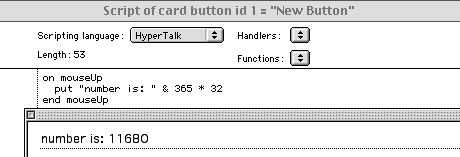
HyperTalk script
HyperTalk was the programming language created in 1987 by Dan Winkler, and used in the HyperCard application, created by Bill Atkinson. Creating programs in HyperTalk was known as "scripting". HyperTalk scripts were much more similar to written English than many languages available at the time.
Webtalk script
A simple example of webtalk scripting:
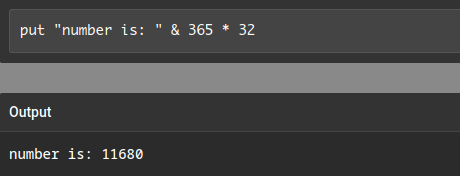
This gives you an idea of what I'm aiming for here, to have something that is platform-agnostic which is capable of running HyperTalk scripts.
I'm trying to give a comparable set of features that were available in Hypertalk, but in Webtalk - so they are available to everyone. As such, there won't be specific Mac-only, Windows-only or Linux-only features implemented on this project. If I add a feature, it will be supported across all platforms.
Current progress:
The current documentation containing the release notes are here, as a PDF
Licensing
You might also want to read the license agreement on that last page of the documentation too.
Download
Webtalk, (current version), is available here: Download
You don't need anything special to run it. Just a recent browser (if you are using Safari, needs to be version 17 or above).
There's also a "rolling-release" version available which is what I'm currently working on as a preview.
WebtalkHost
Alternatively, you can run it in hosted mode. This is a method where you download Webtalk normally, and you additionally download a companion "WebtalkHost" program. Running these together allows Webtalk full access to the filesystem. See more about WebtalkHost here.
Online version
Or lastly, if you prefer, you can try it as an online live demo here. You might also want to check out the testing pages, which give you a list of commands and handlers that are currently implemented.
Overview
A project overview (text file) is also available, which covers how this all works at a quick glance.
I should really mention, you can load JSON stacks with:
load stack "" -- if it can't find the file, it will ask you
Recent additions:
See the archives (release 141-180, 181 to 220 and 221 to 260) for earlier notes.
v261
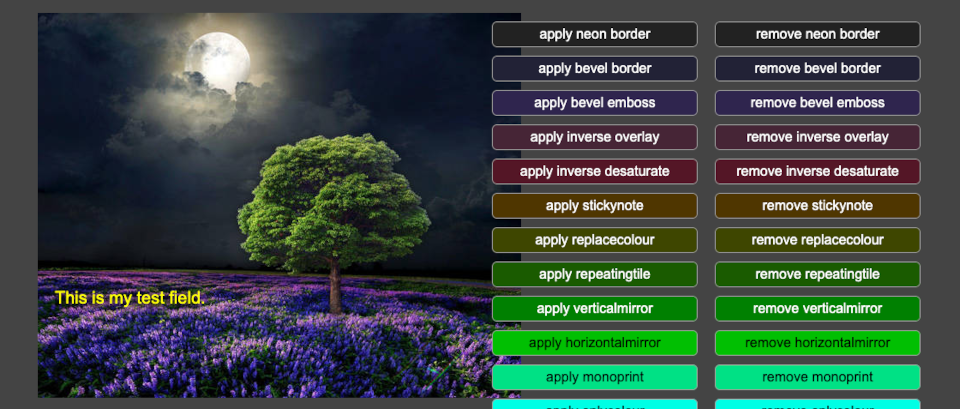
New visual effects in this version, amongst other things:
dynamic-effects
static-effects
legacypict
pendingmessages-cancel-by-string
inherit-font
imageGrid
I also made a chess stack. The main purpose of this was to check that if else statements are working as I'd expect:
chess
Don't expect it to be much of an opponent though!
Documentation for this begins on page 189.
v262
In this version, I've implemented the following new features:
answer-multiline -- demo of the new multiline answer dialog.
char-at-loc -- find a character at an x,y loc on the card.
custom-group-bits -- group label and group border can now have colours
focus-on -- like tabbing to a field, but in script
gamepads -- gamepad support in Webtalk
gif-control -- gif control (current frame, previous frame, next frame, looping)
handlers-as-vars -- execute a handler as a variable
marqueeText -- horizontal scrolling text
matched-control -- find a matched control by param lookup
menu4 -- the menuText uses the answer-multiline now
radial-text -- text on a curve
static-effects -- added both drop shadow variants
tab-tests -- tab palette and groups
text-formatting3 -- formattingCommands cleanup
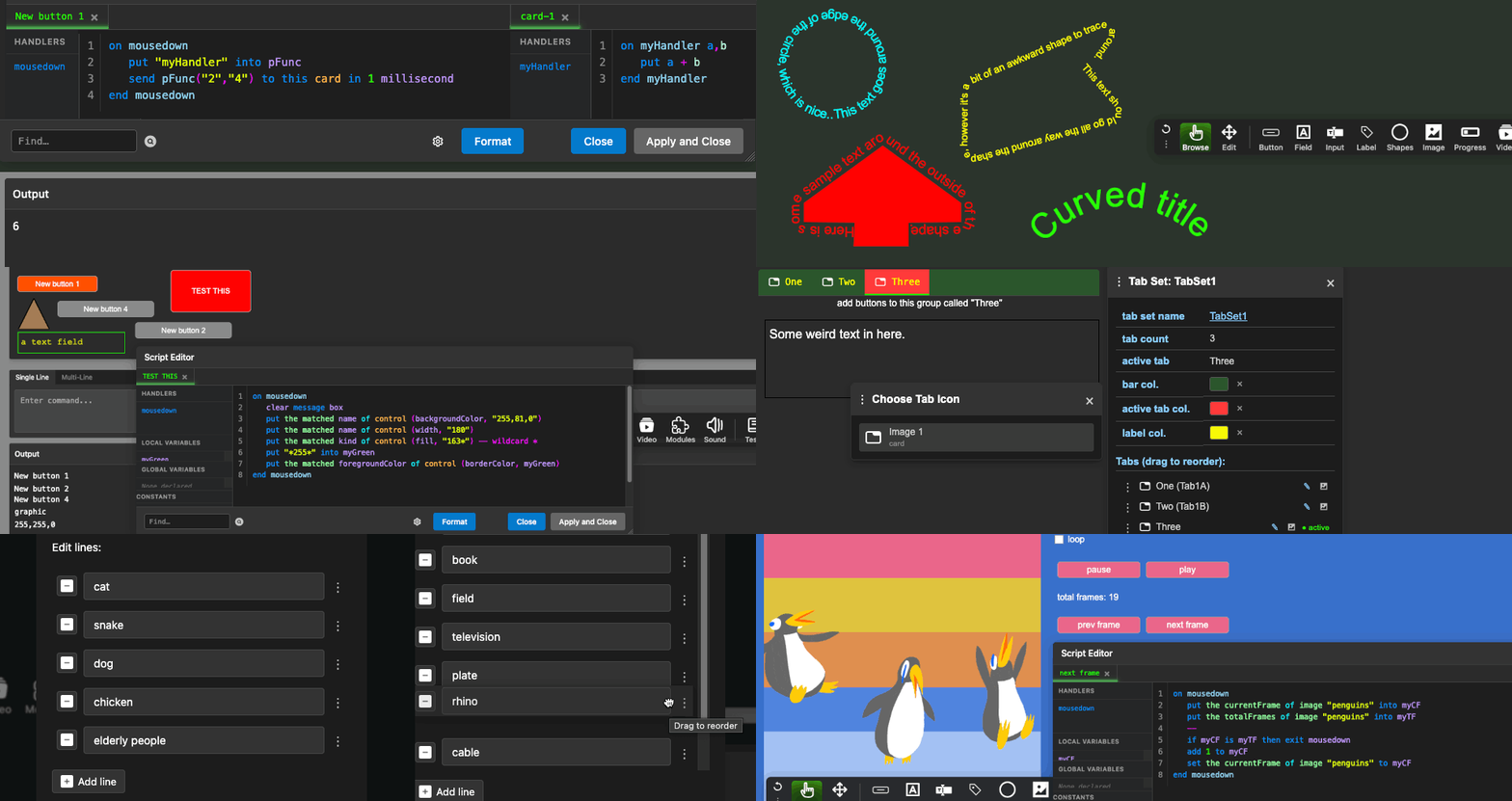
As normal, documentation for this has been updated and begins on page 193.
v263
A few small additions which are detailed on page 199 of the documentation.
Changes in version 263
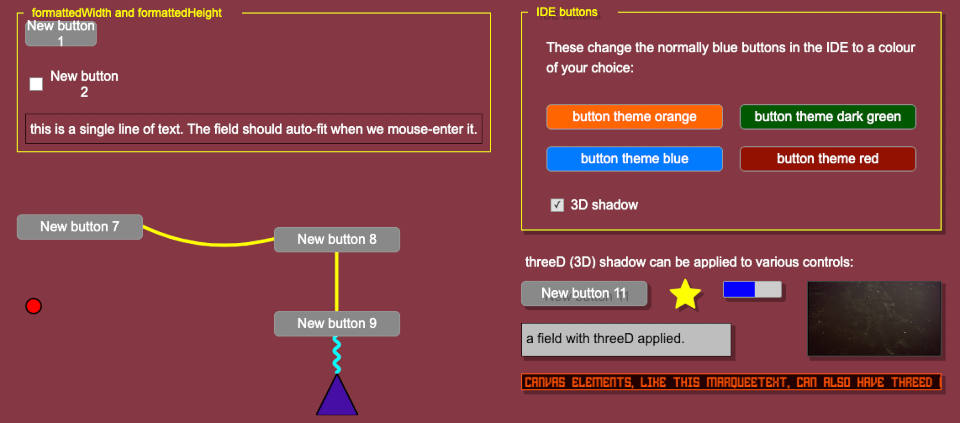
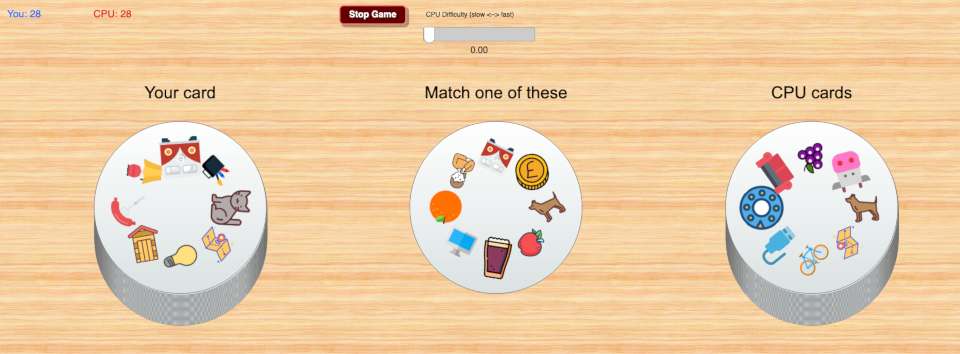
I also made a game called "Got it". This is similar or inspired by the game "Dobble" (and other spin-offs):
Got It
v264
Changes are detailed on page 200 of the documentation.
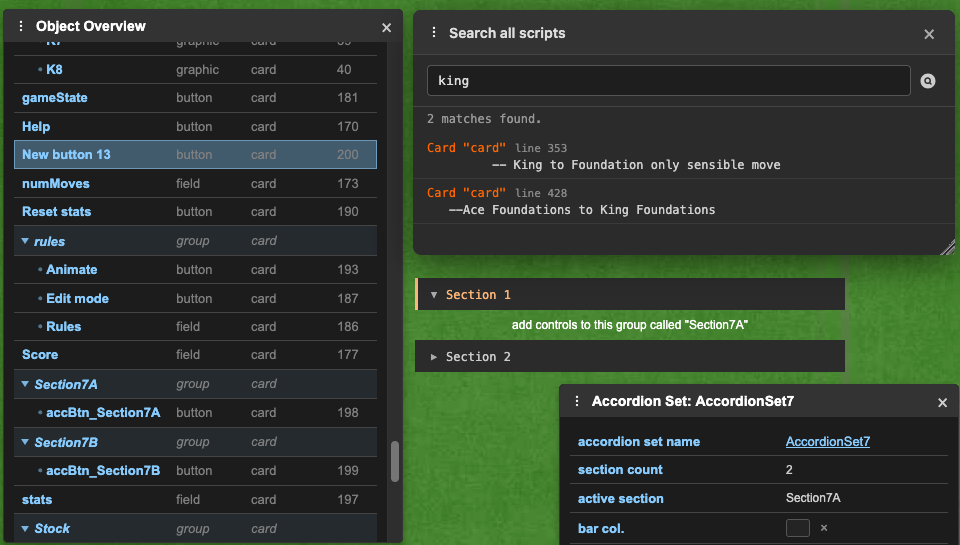
Notable changes to tell you about include a much more helpful overview palette, a "Search all scripts" window, and a new module: "Accordion".
You really (really) will need to refresh your cache for this version. Quite a lot changed behind the scenes.
v265
Fixes to hiding and showing groups, fixes to message propagation, added mousedouble-messages, text formatting (removing html). Oh, and also additionalpendingMessage commands.
-- Get ID 1 of the pendingMessages
put the ID of line 1 of the pendingmessages
-- Get ID of the 'first' pendingMessage
put the ID of first line of the pendingmessages
-- Get ID of the 'last' pendingMessage:
put the ID of last line of the pendingmessages
-- Get ID of line (variable) pendingMessage
put 3 into myLine
put the ID of line myLine of the pendingmessages
Changes are mentioned on page 201 of the documentation.
v266
In this version, my focus has been on adding disk and file access. Previously, you would have had to do this via a wrapper. I'm not 100% happy with the performance (or lack of) which you get from wrappers, when compared to a native browser. So, an alternative is needed.
WebTalkHost is a command-line background application. When first run, it tries to find the Webtalk folder. If it can't, it'll prompt you:
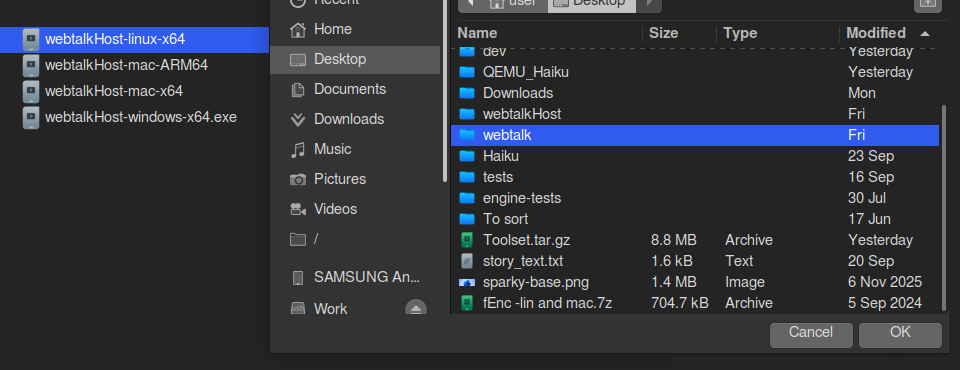
After selecting the Webtalk folder, it'll open your browser on a locally hosted port. (Don't worry too much about that if you are unsure), it means that it runs via a permissive file-access mode.
It means that you can turn on allowShell (shell command access) directly from your browser:
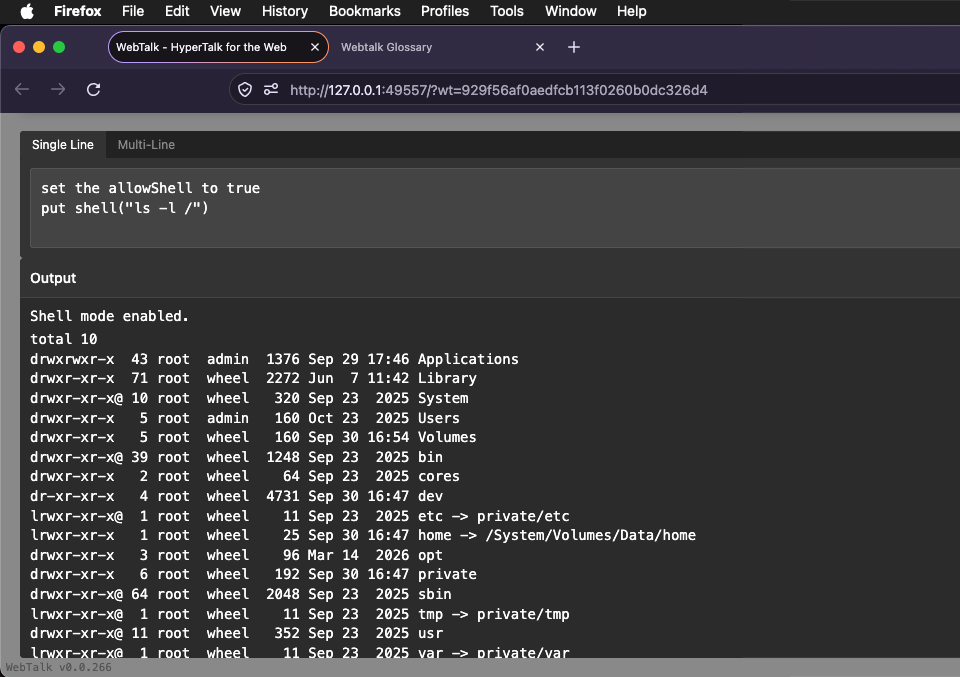
This also opens up access for the disk-and-file commands I've been adding in Webtalk v266:
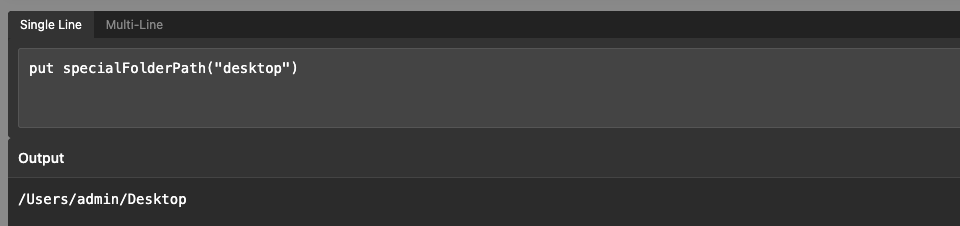
I also added a new module (fileTree) which can be used to query files and folder directories:
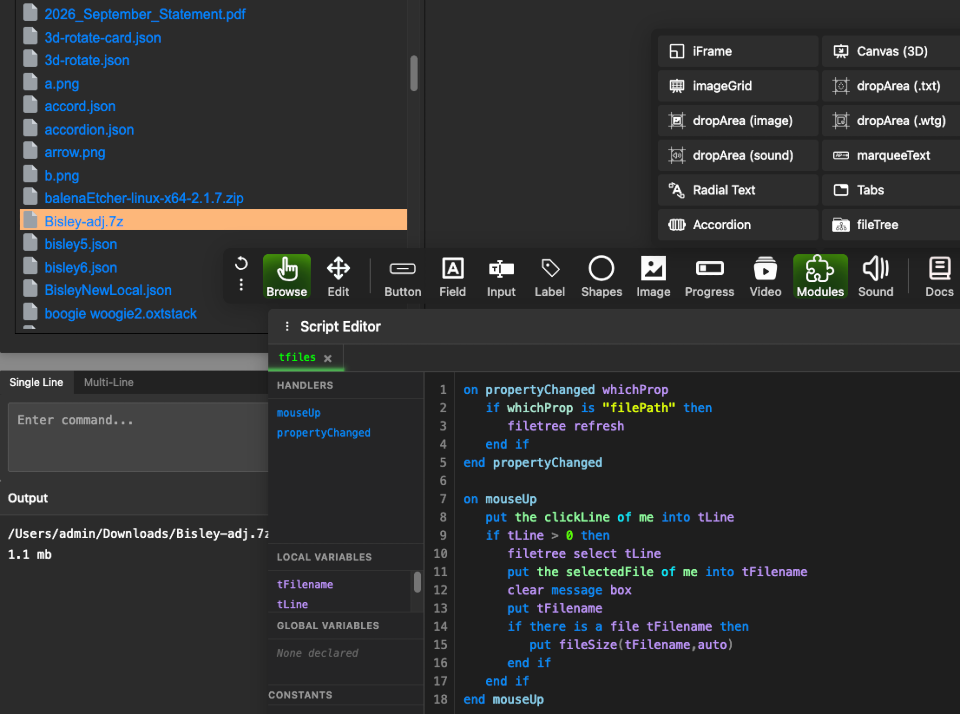
-- get the file size of a file, with automatic units
put fileSize(tFilename, auto)
These disk and file changes are mentioned on page 202 of the documentation onwards. There will be more to follow in the next release where I will expand upon what they can do, adding additional commands.
This was quite a big addition to Webtalk behind the scenes. You may need to make executable in Linux/MacOS:
chmod +x [path to WebtalkHost program]
and the equivalent command in Windows:
icacls [path to WebtalkHost program] /grant "%USERNAME%":RX
From this point on, these replace the 'Wrappers' with this more performant version.
v267
Changes are detailed on page 204 of the documentation.
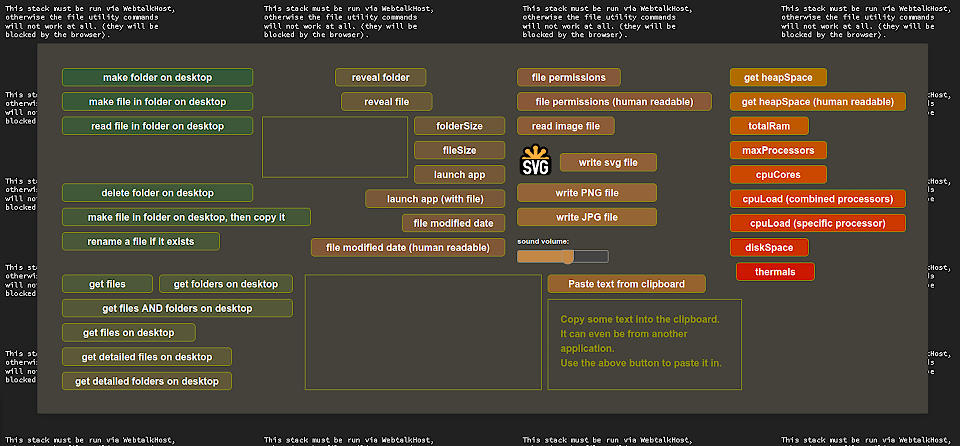
file-utilities-extended.json (this stack is a download, instead of an inline browser preview, because it needs to be run through the WebtalkHost program on a computer).
Previously, I've mentioned that there's just too much to cover in a particular release for this page. I really mean it this time. Hopefully a picture paints a thousand words, but I'd really encourage you to read page 204 of the documentation onwards.
Also, please note: the WebtalkHost application below has also had a few behind-the-scenes changes: you'll need to download fresh versions of that if using these new commands.
WebtalkHost programs:
If you are unsure what WebtalkHost is, please read page 202 of the documentation where it's explained in greater detail.
 WebTalkHost Linux 64-bit
 WebTalkHost Haiku 64-bit
 WebTalkHost Windows 64-bit
 WebTalkHost Mac Intel 64-bit
WebTalkHost Mac ARM 64-bit
Example stacks:
Live demos and tools:
User submissions:
My submissions:


 refresh the page you run webtalk in a few times - I've also tried implementing a few methods of cache-blocking recently in the interpreter.